
Essential Maintenance Tips for FDM Printers
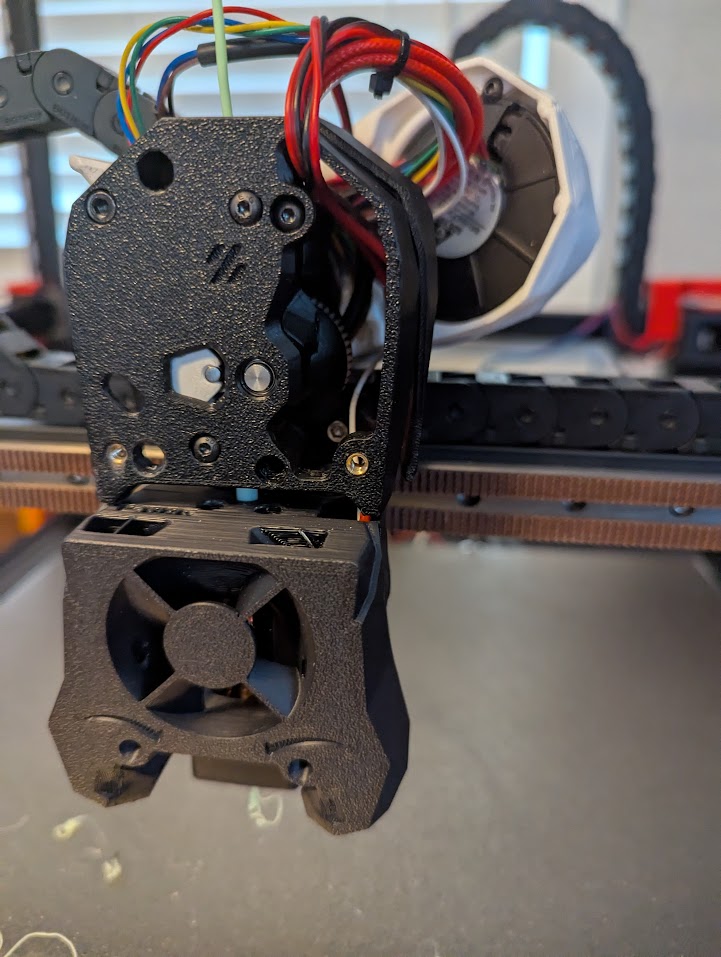
Regular 3D printer maintenance saves you from failed prints, clogs, and broken parts. With a simple routine, your FDM printer can stay accurate, safe, and ready to run for years.
What Is 3D Printer Maintenance and Why It Matters
3d printer maintenance is the set of small tasks you do to keep your machine clean, smooth, and calibrated. You are looking to prevent problems instead of chasing mystery issues every time a print fails.
FDM printers run hot, move fast, and carry dust and plastic bits through every corner of the machine. Dirt on rods, worn belts, or a half-clogged nozzle all show up as layer shifts, stringing, blobs, or warped corners. A printer that used to “just work” can slowly drift into a state where you fight it on every job.
Good maintenance gives you:
- More reliable first layers
- Fewer clogs and jams
- Better looking surfaces
- Less wasted filament and time
You do not need fancy tools. A set of hex keys, a small brush, lint‑free cloths, cotton swabs, a light lubricant, and some isopropyl alcohol will cover most of your 3d printer maintenance needs.
Daily 3D Printer Maintenance: Quick Checks Before Every Print
Think of this as your pre-flight check. It takes a minute or two and prevents a lot of headaches.
Inspect the build plate
Look for leftover blobs or stuck parts from the last job. Scrape off any residue using a plastic scraper instead of metal so you do not gouge glass or PEI.
Check that the plate is seated properly and locked or clipped in place. A plate that is slightly loose or not fully seated ruins first-layer height.
Check the nozzle area
Look at the nozzle and heater block. Peel off any hanging boogers of plastic before they drag through your fresh first layer. If you see a big “sock” of burnt plastic stuck around the heater block, plan a deeper clean soon.
Run your fingers lightly over the fan shrouds and ducts to see if anything is loose. A cracked or wobbly fan shroud can change airflow and cooling on overhangs.
Listen for odd noises
While the printer homes and starts a print, listen for grinding, squealing, or chattering. Strange sounds often point to dry rails, loose belts, or a binding axis. Catching that early keeps your parts from shifting mid-print.
Weekly Maintenance: Keeping Motion Systems Smooth
Once a week, or every 20–30 print hours, give focus to the moving parts. Smooth motion means better surfaces and fewer layer shifts.
Clean rods, rails, and lead screws
With the printer off, move the axes by hand. They should move freely without big sticky spots.
Use a dry, lint‑free cloth to wipe dust and old grease from smooth rods and linear rails. Avoid soaking them in solvent. You just want to remove loose junk.
For lead screws on Z axes, use a small brush or a dry cloth to clear off dust. If the screw looks dry or makes a grinding sound, you can add a tiny drop of a light machine oil or a manufacturer-recommended grease, then run the axis up and down to spread it.
Inspect and tension belts
Belts that are too loose cause ringing, ripples on surfaces, and missed steps. Belts that are too tight wear bearings and motors.
Use your fingers to press the belts along their longest straight section. They should feel firm with a bit of give, not floppy like a rubber band. Many printers have little belt tensioners; turn them a quarter turn at a time and test again.
Look along the length of the belt for missing teeth, fraying edges, or cracks. Replace belts that look worn instead of trying to “get one more month” out of them.
Check pulleys and set screws
The pulleys on motor shafts and idlers need to be tight. Lightly twist them with your fingers. If you feel a pulley wiggle on the motor shaft, tighten the tiny set screw with the correct hex key. A single loose pulley gives you instant layer shifts.
Monthly Deep Clean: Hotend, Extruder, and Cooling
Once a month, or after a long series of prints, do a deeper 3d printer maintenance pass on the hotend and extruder.
Clean the hotend exterior
Heat the hotend up to your normal printing temperature for PLA or whatever filament is loaded. When it is hot, use tweezers to pull off any soft plastic stuck to the nozzle tip. Never touch the nozzle with your fingers; it can burn you fast.
Turn the printer off, let it cool, then wipe around the heater block and neck with a cloth or cotton swab. If your printer has a silicone sock that is torn or caked in burnt plastic, replace it.
Perform a cold pull (if your hotend design allows it)
A cold pull helps clear partial clogs. Load nylon or a good cleaning filament, heat to its printing temperature, extrude a bit, then cool down to a lower temperature where the plastic is rubbery but not fully liquid. Once it reaches that point, pull the filament out in one firm motion. You should see a plug shaped like the inside of your nozzle with bits of burnt plastic attached. Repeat until it comes out clean.
Check your printer’s manual to see if this method is safe for your specific hotend.
Inspect and clean the extruder
Open the extruder housing if possible. Use a small brush or compressed air to remove ground filament dust around the drive gear. That dust can pack in and reduce grip.
Look closely at the drive gear teeth. If they are packed full of plastic, clean them with a brush or a toothpick. If they look worn smooth, the gear may need replacement.
Check that the idler tension system (spring or screw) is not absurdly tight or barely touching. Too much tension can grind soft filament, too little will cause under‑extrusion and slipping.
Check and clean cooling fans
Power off the printer. Hold the fan blades still with a toothpick or your finger, then use a brush or compressed air to clear dust from the blades and grills. Do not spin the fans with compressed air like a pinwheel; that can damage them.
Spin the fans gently by hand. They should move freely. If a fan makes a harsh noise or feels rough, consider replacing it before it fails mid‑print and overheats your hotend or electronics.
Bed Maintenance: Clean Surfaces and Reliable Adhesion
Your build plate is where every print begins. A dirty or damaged bed will waste more time and filament than almost any other maintenance problem.
Routine cleaning
For glass, smooth PEI, or mirror surfaces, use isopropyl alcohol (IPA) and a lint‑free cloth. Wipe after a few prints or whenever fingerprints or streaks appear. Oils from your hands are a major cause of first-layer adhesion problems.
If IPA is not enough and you see shiny plastic patches stuck to the bed, scrape gently with a plastic scraper while the plate is warm but not hot. For stubborn spots on glass, a razor scraper held flat can work, but use care and keep the blade at a shallow angle.
Handling textured PEI and similar plates
Textured PEI sheets do not like aggressive scraping or harsh chemicals like acetone unless the maker says it is safe. Stick with mild cleaners or IPA and soft cloths. Avoid gouging or polishing the texture; that texture is part of what helps prints stick.
Rotate or flip removable plates now and then to even out wear.
Watching for warping and damage
Look across the plate at eye level. If you see obvious dips or bends, or if one corner always prints badly even after leveling, the plate may be warped. Deep gouges, bubbles, or peeling coatings also cause repeated failures. Replacing a damaged plate is often cheaper than chasing “ghost” problems for months.
Filament Care and Storage to Prevent Clogs
Maintenance is not just on the printer. Filament that is wet, dirty, or brittle leads straight to clogs and ugly prints.
Keep filament dry
PLA, PETG, TPU, and especially nylon all absorb moisture from the air. Moist filament pops, hisses, and leaves rough, bubbly surfaces.
Store spools in sealed containers or bags with desiccant packs when not in use. If a spool has been sitting out for weeks and prints poorly, dry it in a filament dryer or a low‑temperature oven made for that use, following safe temperature limits for that material.
Protect filament from dust
Dust on filament gets dragged straight into your extruder and hotend. Use simple clip‑on filament dust filters or run filament through a short piece of sponge inside a printed clip before it enters the extruder. Replace or clean the sponge when it looks dirty.
Watch for brittle or damaged filament
Take a bit of filament and bend it. If it snaps with almost no flex, it might be too old, over‑dried, or sun damaged. That kind of filament can break inside Bowden tubes and cause jams. Retire spools that keep snapping and save your sanity.
Calibration Checks: Bed Leveling, E-Steps, and Axis Alignment
Good mechanics still need calibration to produce accurate parts. These checks are part of regular 3d printer maintenance, especially after moving the printer or changing hardware.
Bed leveling
Many printers have auto bed leveling probes now, but they still rely on a roughly level and mechanically solid bed.
For manual leveling, use the classic paper method: home the printer, disable steppers, then move the nozzle above each corner. Adjust the knobs so a piece of paper slides between nozzle and bed with slight drag. Repeat until all corners and the center feel consistent.
If you use auto bed leveling, make sure the probe mount is tight and the nozzle and probe are at their correct offset. Run the leveling routine on a warm bed and hotend so the printer is in “real” printing conditions.
First-layer Z offset
Even with a flat bed, your Z offset might drift a little over time. Many printers let you “baby step” the Z offset during the first layer. If you find yourself always adjusting it, go into the settings and store a new baseline offset.
Thin, transparent first layers mean the nozzle is too close. Sparse or wiggly lines that do not merge mean you are too high.
E-steps and flow check
If you change extruders, drive gears, or filament types, check your extrusion steps (E-steps). Mark 120 mm of filament, command the printer to extrude 100 mm, then measure how much actually moved. Adjust E-steps in firmware or the control panel according to your printer’s guide.
You can fine-tune in your slicer with flow rate adjustments. Print a single-wall cube and measure wall thickness. If it comes out too thick or too thin compared to the model, nudge flow rate up or down a few percent.
Axis squareness
If your X and Y axes are not square, you will see rhombus‑shaped parts instead of perfect rectangles. Print a calibration square and measure diagonals. If they differ, check frame bolts, gantry brackets, and corner connectors. Loose frame hardware can slowly shift and throw things out of square.
Firmware, Lubrication, and Electronics Checks
Software and electronics need some attention too, just on a slower schedule.
Firmware and configuration
Check now and then if your printer manufacturer, mainboard maker, or community firmware (like Marlin forks) has stable updates that fix bugs or add useful safety checks. Read change logs and follow official flashing guides. Never interrupt a firmware flash, and double‑check you have the right file for your exact board.
After firmware updates, recheck steps per millimeter, acceleration limits, PID tuning for hotend and bed, and any probe offsets. Small changes in defaults can affect print behavior.
Lubrication schedule
Use lubrication sparingly and only on parts that call for it. Many linear rails ship pre‑greased and only need light re-greasing after long use. Smooth rods may use a thin coat of light machine oil or a suitable grease. Belts do not get lubricated.
Before adding lube, always wipe off old grease and grime. Fresh grease over dirt just builds a sticky paste that attracts more dust.
Electronics and wiring
Once in a while, power the printer off and open the electronics bay if it is accessible. Look for any burnt smells, loose connectors, or brown spots on boards. Make sure wires are not rubbing on sharp metal edges or getting pinched in moving joints.
Check that the power supply fan spins freely and is not blocked with dust bunnies. A quick blast of air from a distance can clear dust, but keep the fan blades from over‑spinning by holding them still.
Common 3D Printer Maintenance Mistakes to Avoid
There are a few habits that cause more harm than good.
- Over‑tightening everything: Screws, belts, and springs need to be snug, not cranked down as hard as possible. Over-tightening can strip threads or warp parts.
- Using the wrong lubricants: Heavy grease on light rails or “whatever oil is in the garage” can gum things up or attack plastic. Stick to light machine oils or greases that your printer’s maker or community recommends.
- Cleaning hot parts with solvents: Spraying cleaners on a hot bed or hotend can release nasty fumes and damage coatings. Let things cool before you clean.
- Ignoring small problems: Odd noises, small first-layer issues, or a bit of stringing that suddenly appears are early signs of something changing. Fixing small issues early is easier than tearing the printer apart later.
Simple Maintenance Schedule You Can Follow
Here is a simple starting point for 3d printer maintenance. Adjust based on how much you print.
- Before each print:
- Clean the bed surface.
- Check the nozzle area for blobs.
- Listen for odd sounds as the printer moves.
- Weekly or every 20–30 print hours:
- Wipe rods, rails, and lead screws.
- Check belt tension and pulleys.
- Visually check wires, connectors, and fans.
- Monthly or every 100 print hours:
- Clean the hotend exterior and perform a cold pull if needed.
- Open and clean the extruder gears.
- Deep clean or replace filament dust filters.
- Recheck bed leveling and Z offset.
- Every 6–12 months:
- Re‑grease rails or lead screws if required.
- Inspect bearings, couplers, and belts for wear.
- Review firmware for safe, stable updates.
If you are running a print farm or leaving printers running day and night, tighten these intervals quite a bit.
Conclusion
3d printer maintenance does not have to be a big project; it works best as a handful of small habits worked into your printing routine. By keeping motion systems clean, the bed surface fresh, the hotend clear, and your filament dry, you avoid most of the painful issues that scare new users away from FDM machines. Spend a few minutes looking after your printer and it will reward you with cleaner, faster, and more reliable prints for a long time.